
INSTRUCTIONS FOR WORKING IN GOOGLE WORKSPACE
- FIRST SIGN-IN TO A CORPORATE ACCOUNT
- SIGNING IN TO A CORPORATE ACCOUNT AGAIN
- HOW A STUDENT CAN JOIN GOOGLE CLASSROOM IN THE CORPORATE DOMAIN
- ADDING A NEW PROFILE IN GOOGLE CHROME
FIRST SIGN-IN TO A CORPORATE ACCOUNT:
-
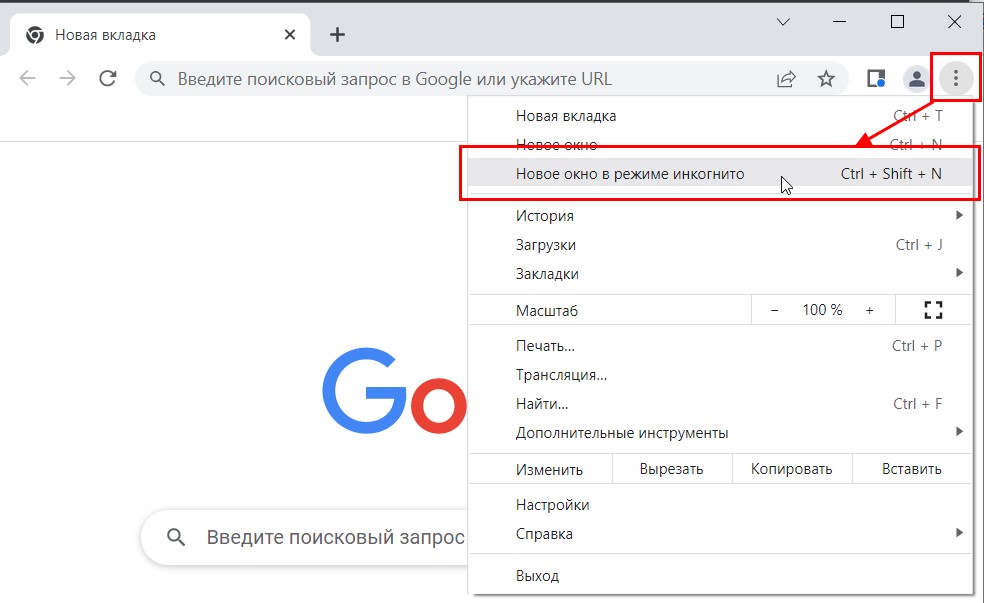
Open a browser (Google Chrome, Mozilla Firefox, Microsoft Edge or another). Open an incognito window.
-
In the browser’s address bar, enter accounts.google.com

-
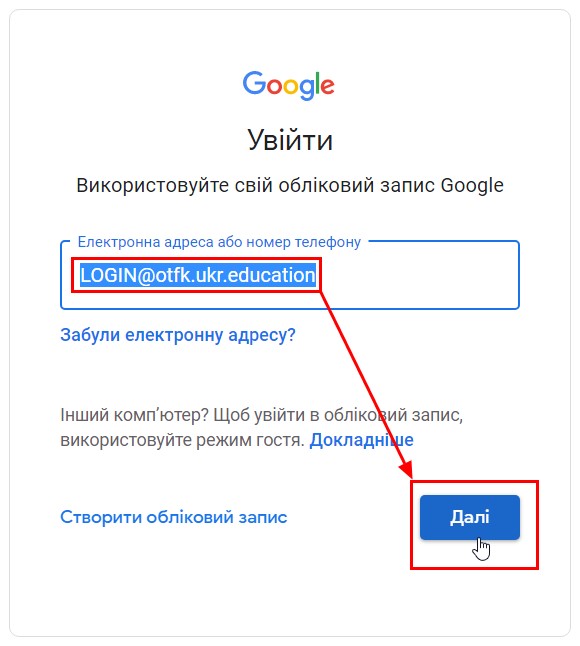
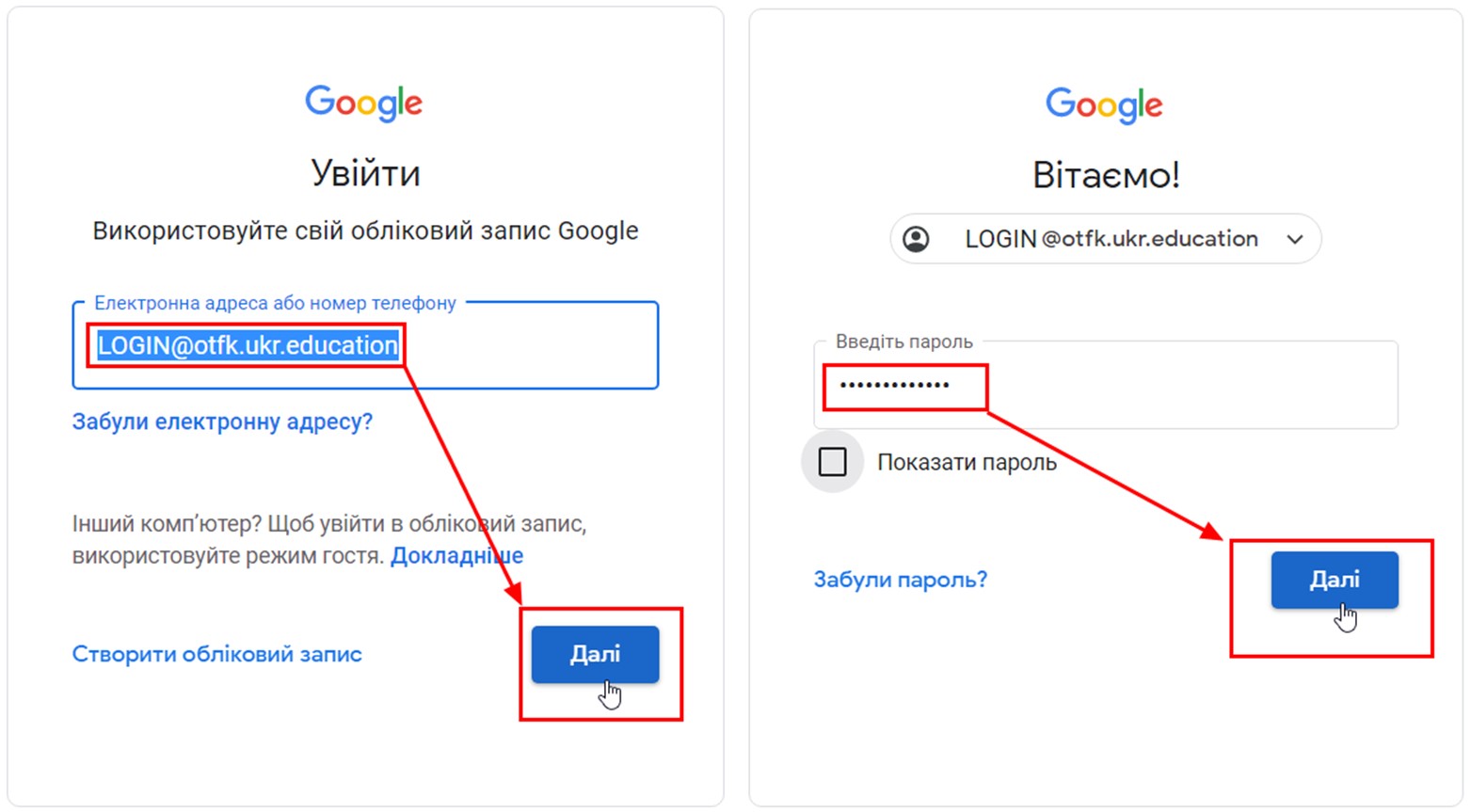
Enter the username you received from the Google Workspace administrator and click Next.
-
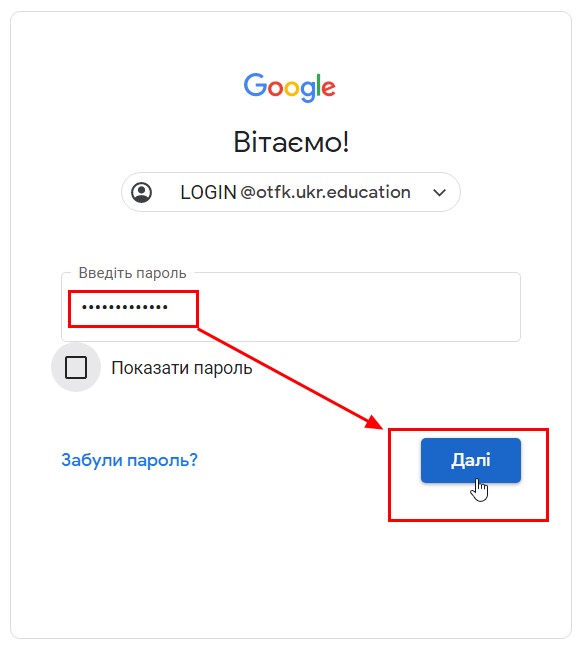
Enter the password you received from the Google Workspace administrator and click Next.
-
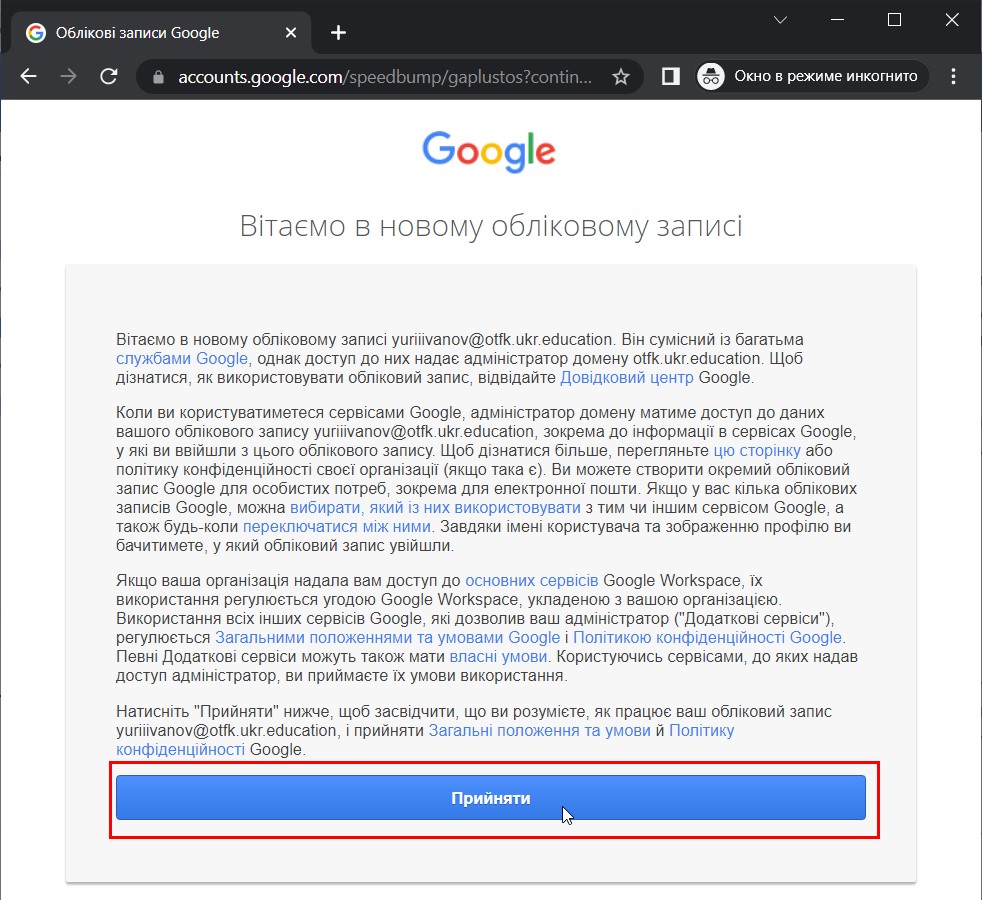
Click the Accept button to agree to the general terms, conditions and privacy policy of Google.
-
Create a strong password of your own, which will be used from now on to sign in to your corporate account (the password may consist of Latin letters, digits and symbols). Be sure to write down the password you have created, because YOU will not be able to recover it on your own!!!
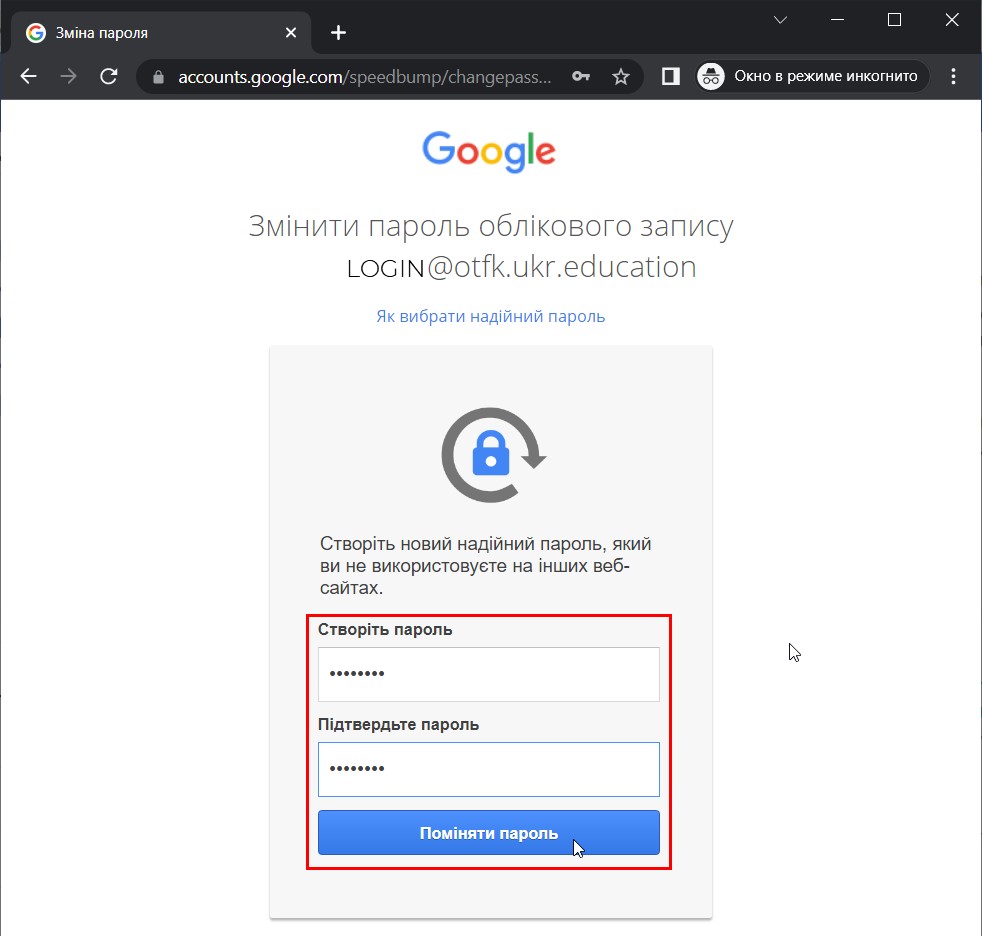
Characters that may be used when entering the username and password: uppercase Latin letters – from A to Z, lowercase Latin letters ¬– from a to z, digits from 0 to 9, special characters – space ! " # $ % & ' ( ) * + , - . / : ; < = > ? @ [ \ ] ^ _` { | } ~.
-
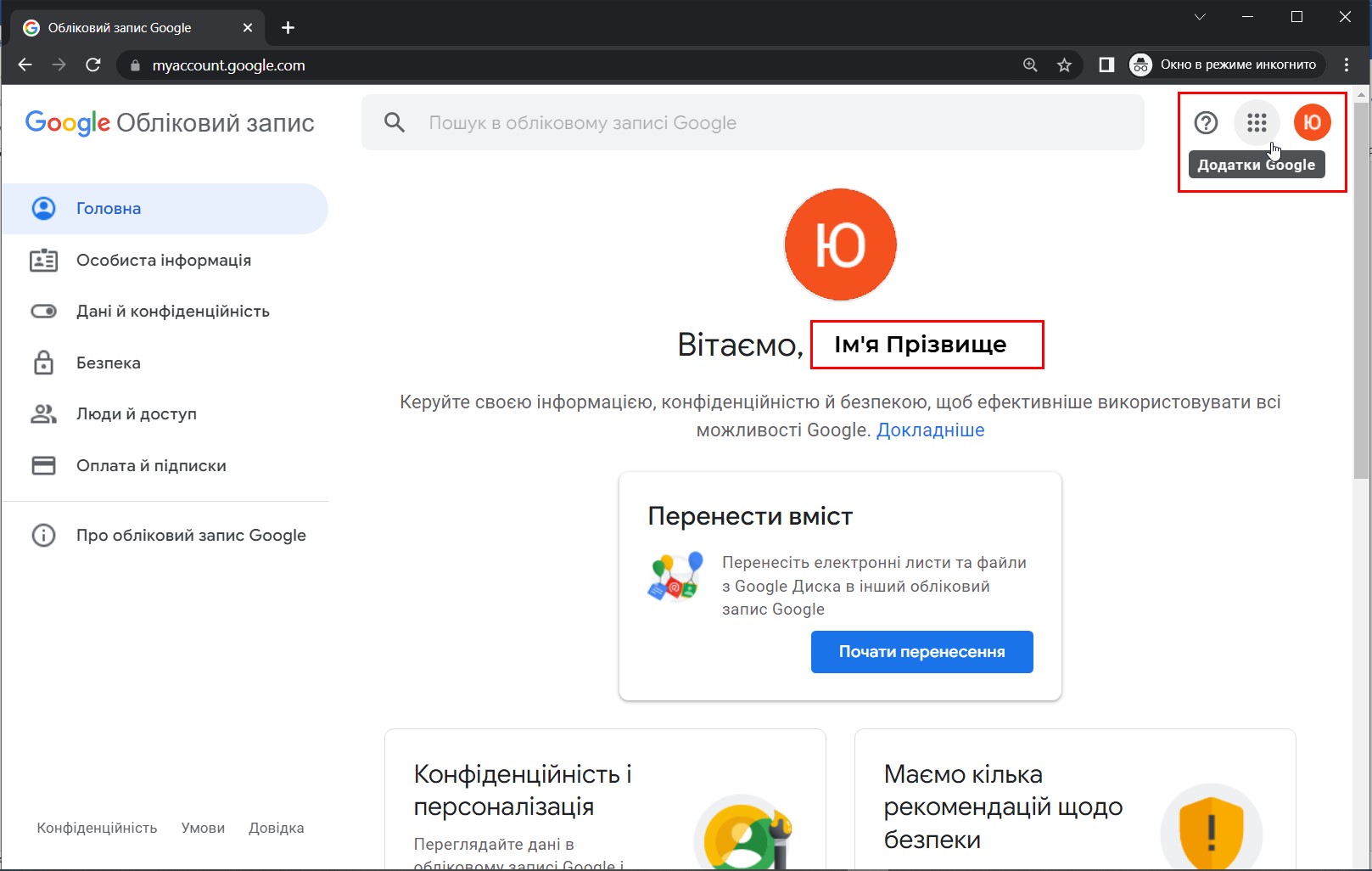
After that you will go to the Google Account page, in the upper right corner of which there is the Google Apps button. Click this button.
-
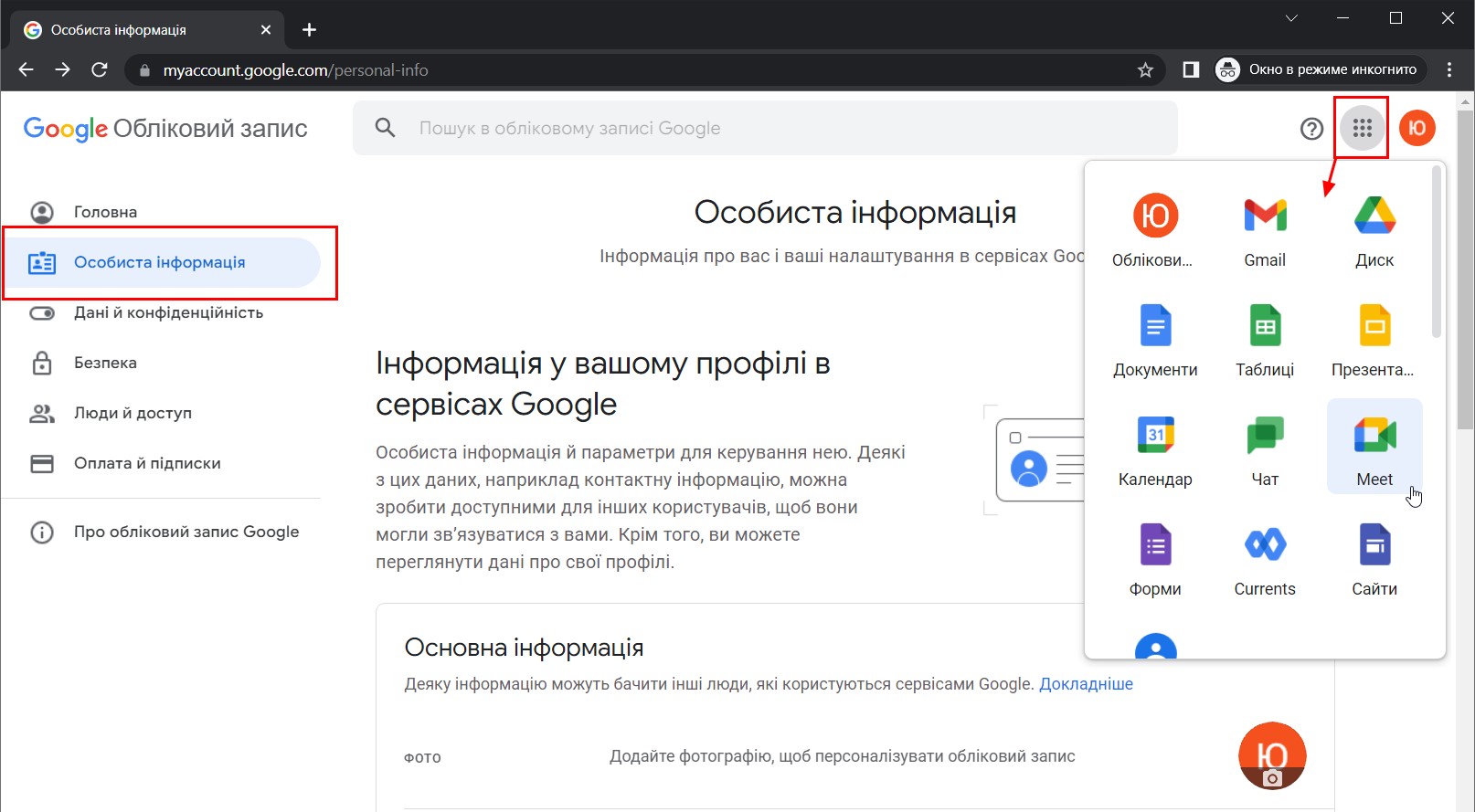
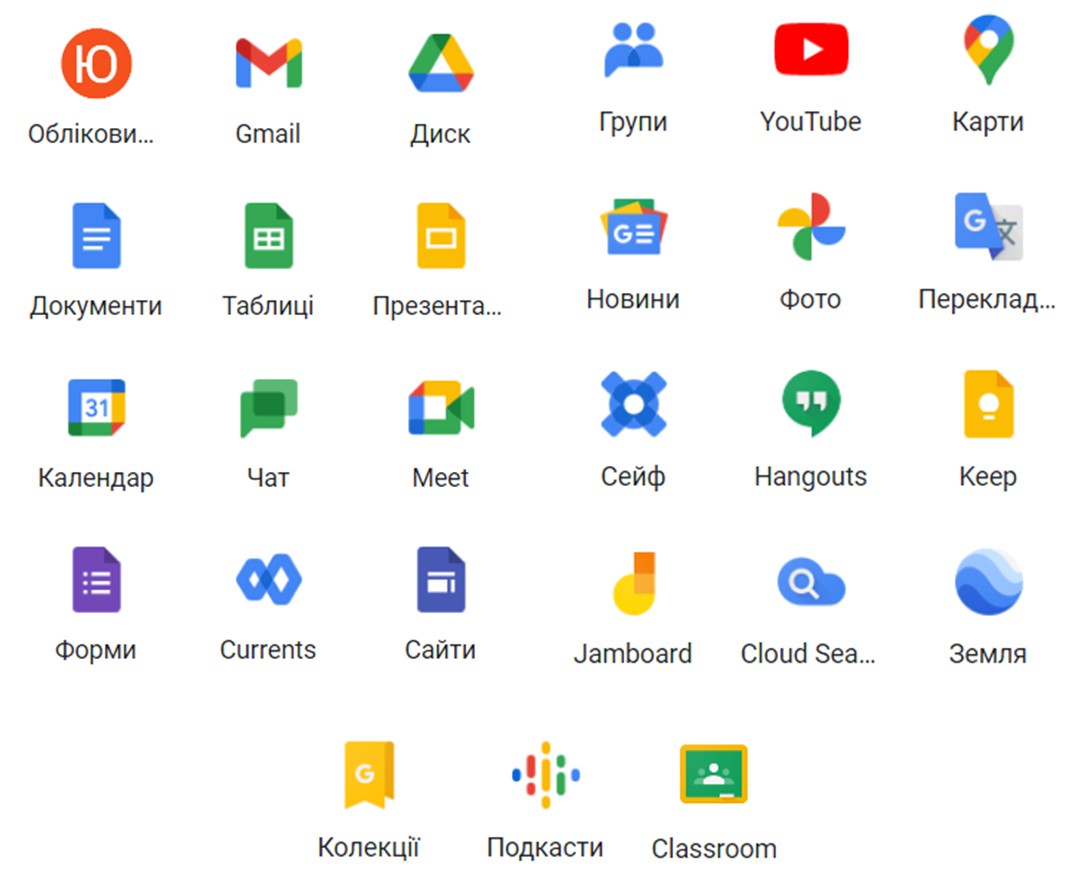
After you click the Google Apps button, a list of available apps will open, for example Gmail, Meet, Classroom. You can also add your own photo, if you wish, on the Personal info page of your account.
-
After that you can use all the features of your Google Workspace corporate account.
SIGNING IN TO A CORPORATE ACCOUNT AGAIN:
-
Open a browser (Google Chrome, Mozilla Firefox, Microsoft Edge or another).
-
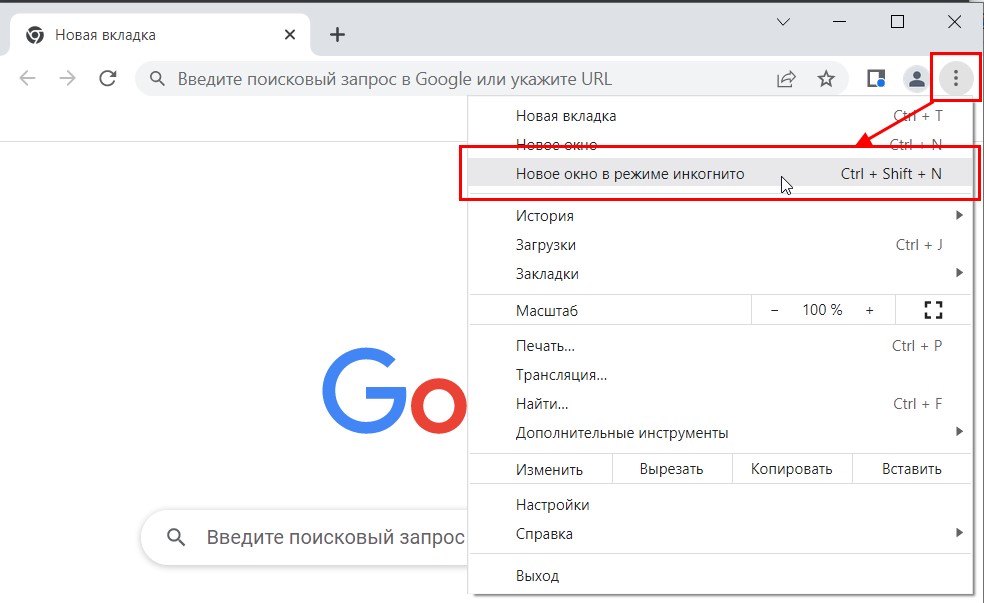
Open an incognito window (always open an incognito window when you are not working on a personal PC or laptop).
-
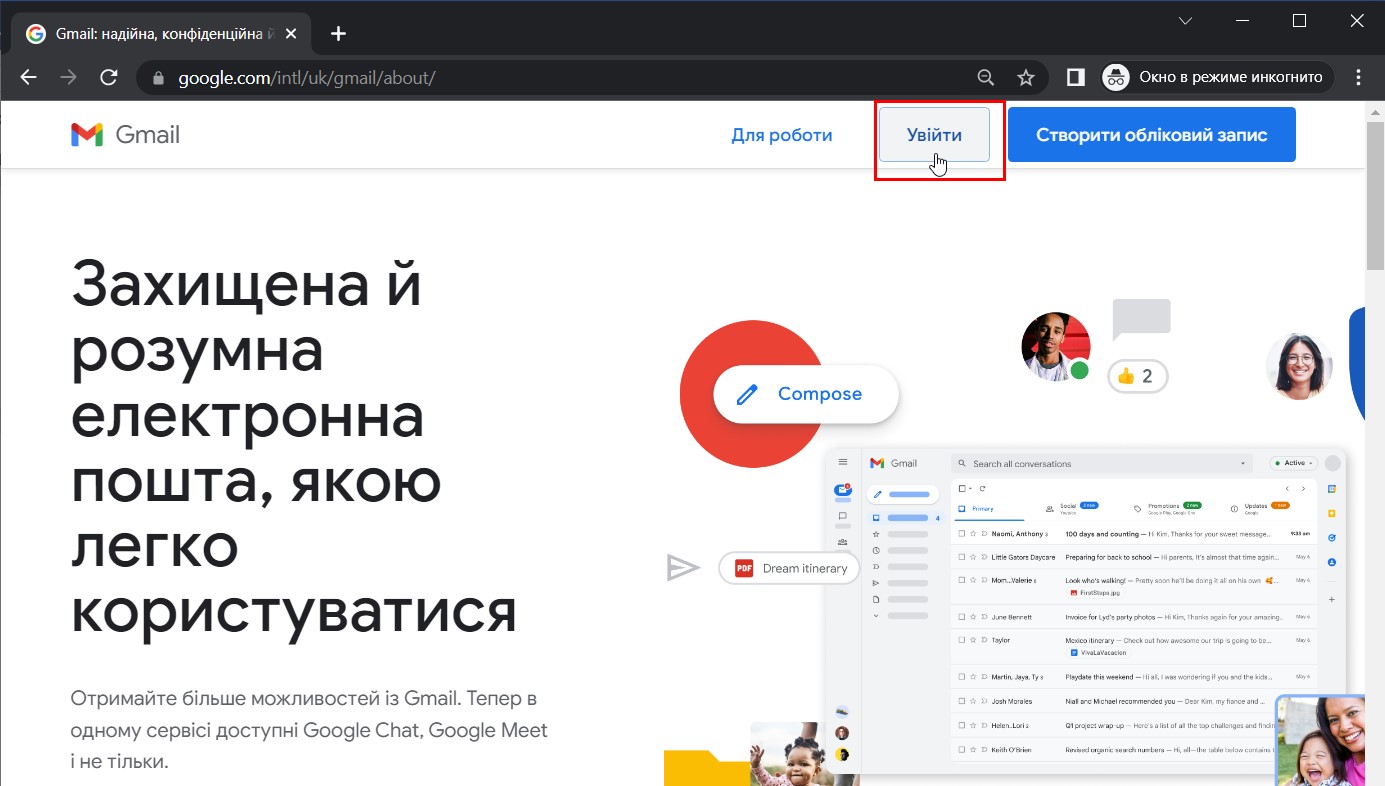
In the browser’s address bar, enter accounts.google.com or gmail.com and click the Sign in button in the upper right corner of the page.
-
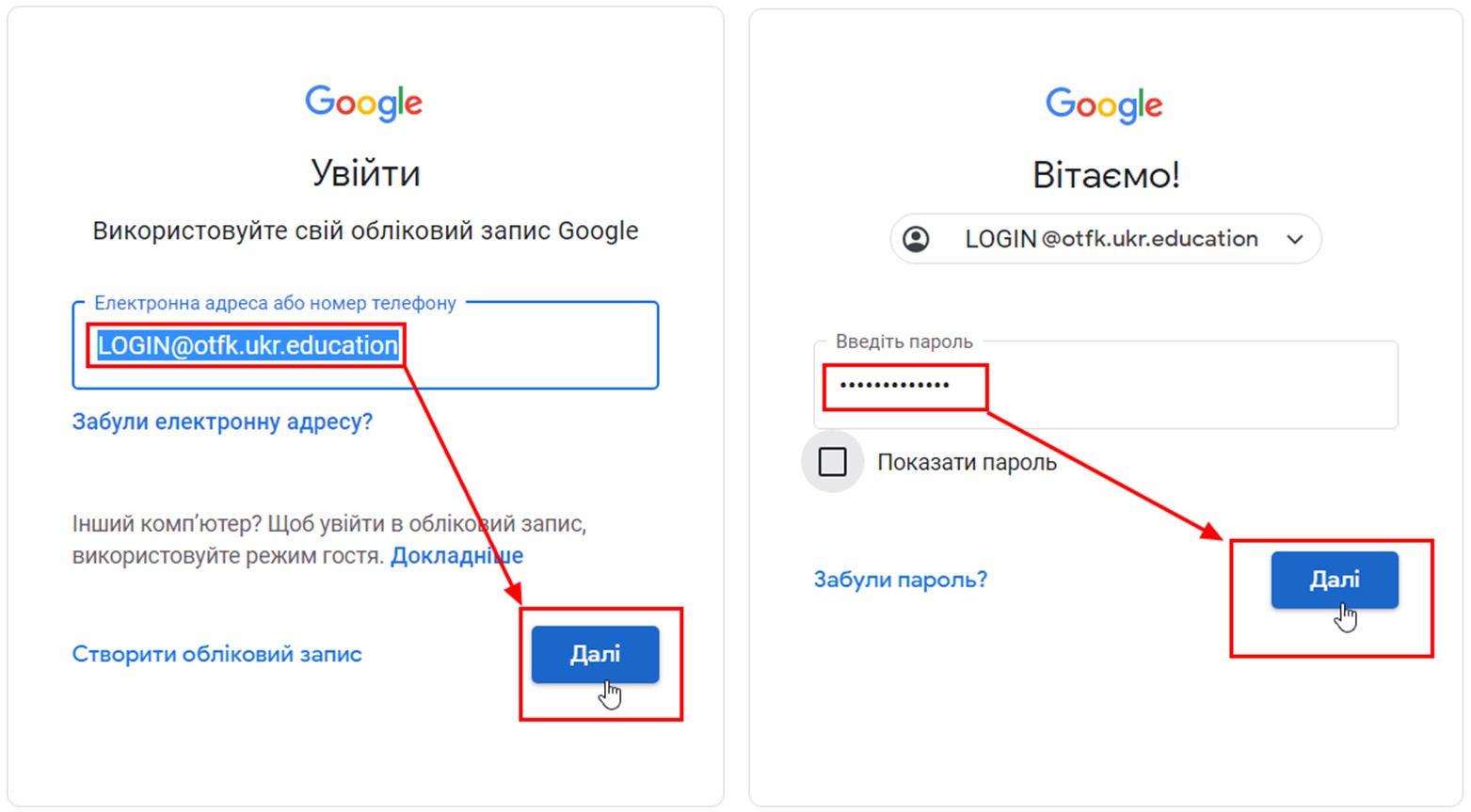
Enter the username you received from the Google Workspace administrator and click Next. Enter the password you created yourself when you first signed in to the corporate account and click Next.
-
You are now signed in to your corporate account and can use all the available Google Workspace apps.
HOW A STUDENT CAN JOIN GOOGLE CLASSROOM IN THE CORPORATE DOMAIN:
-
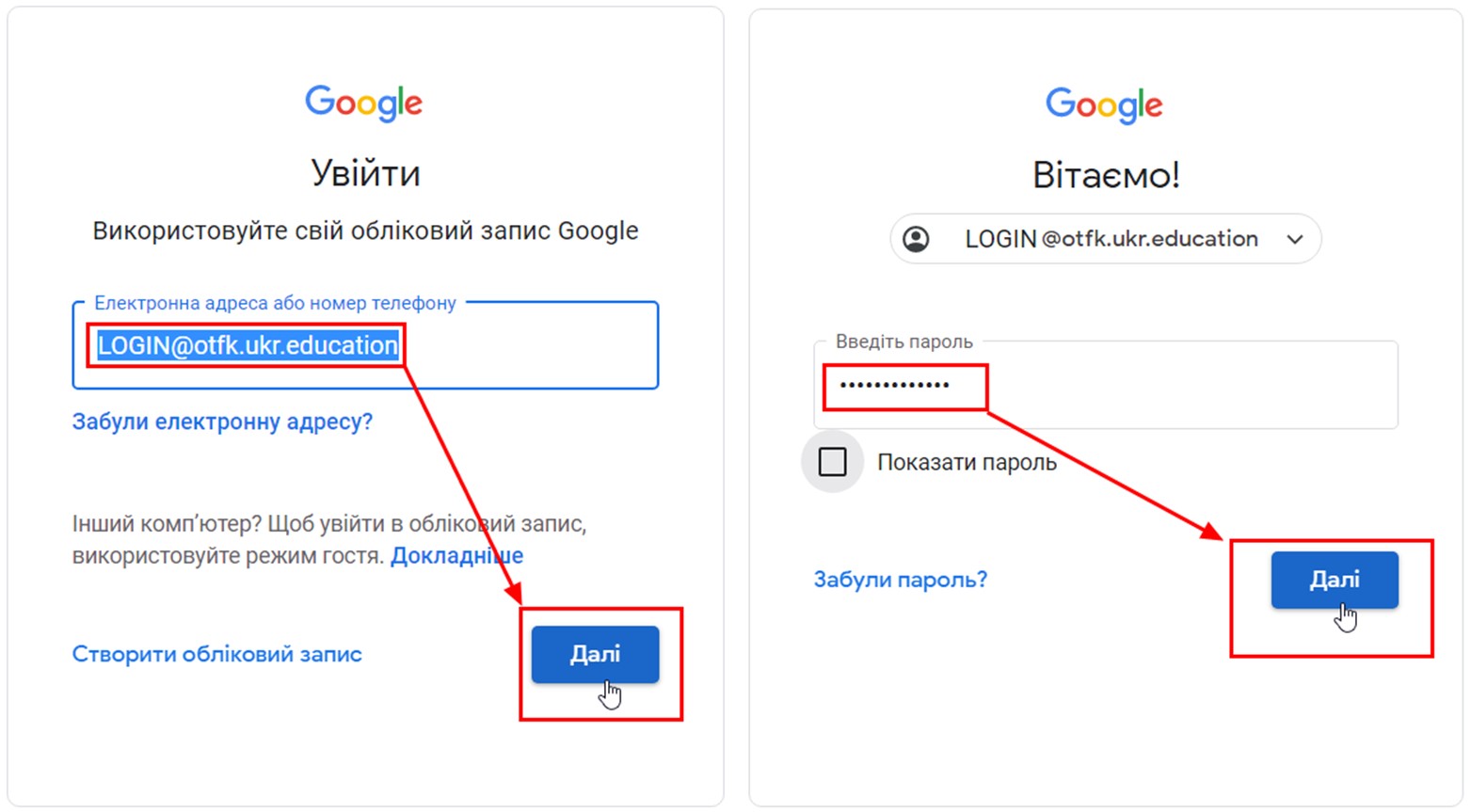
Go through the authorisation procedure (sign in to your corporate account).
-
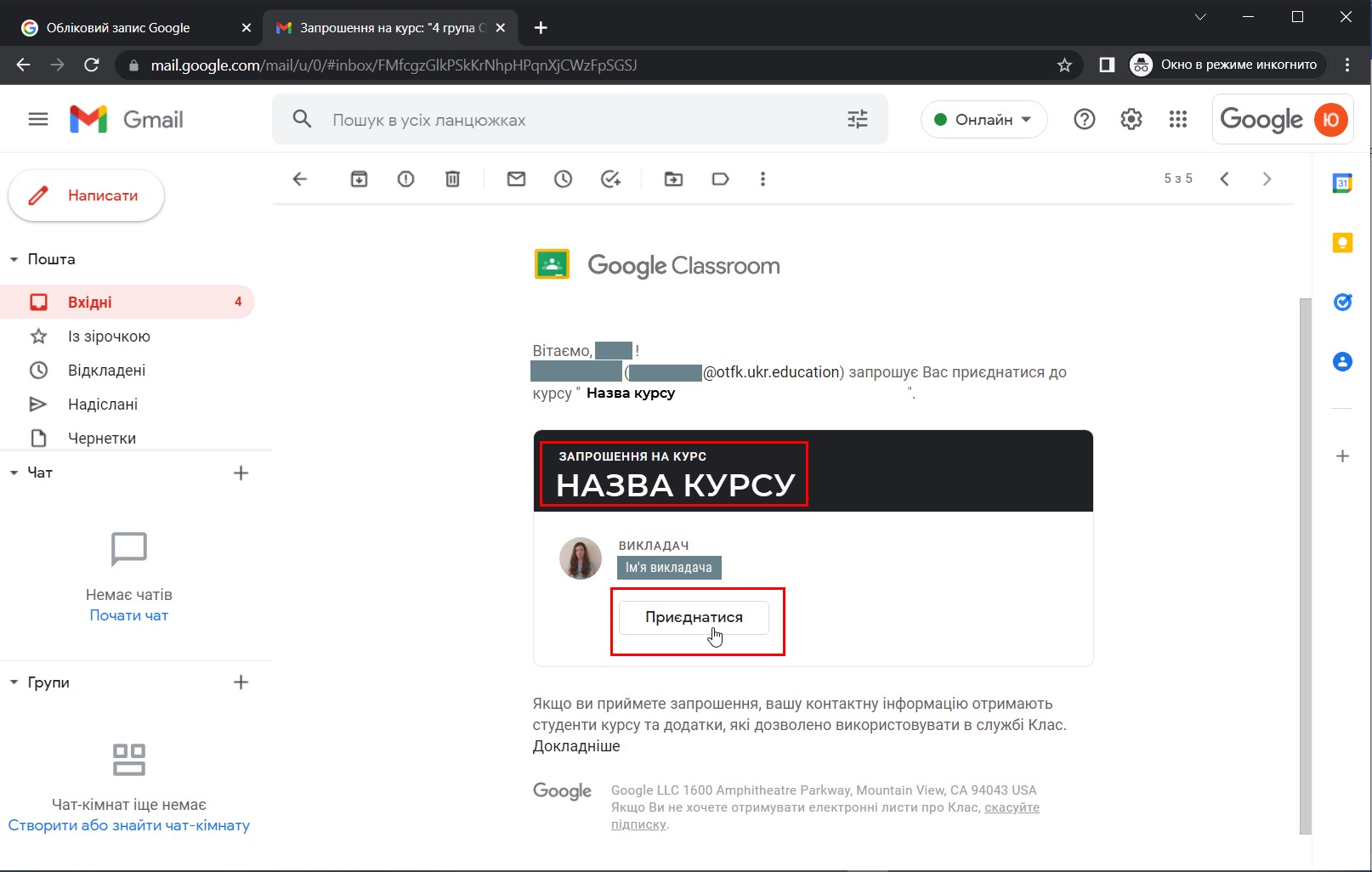
Open the Google apps in the upper right corner and find the Gmail app. Your inbox will contain invitation e-mails to Google Classroom, which state the lecturer’s name and the course title. Confirm your registration for the course by clicking the Join button.
-
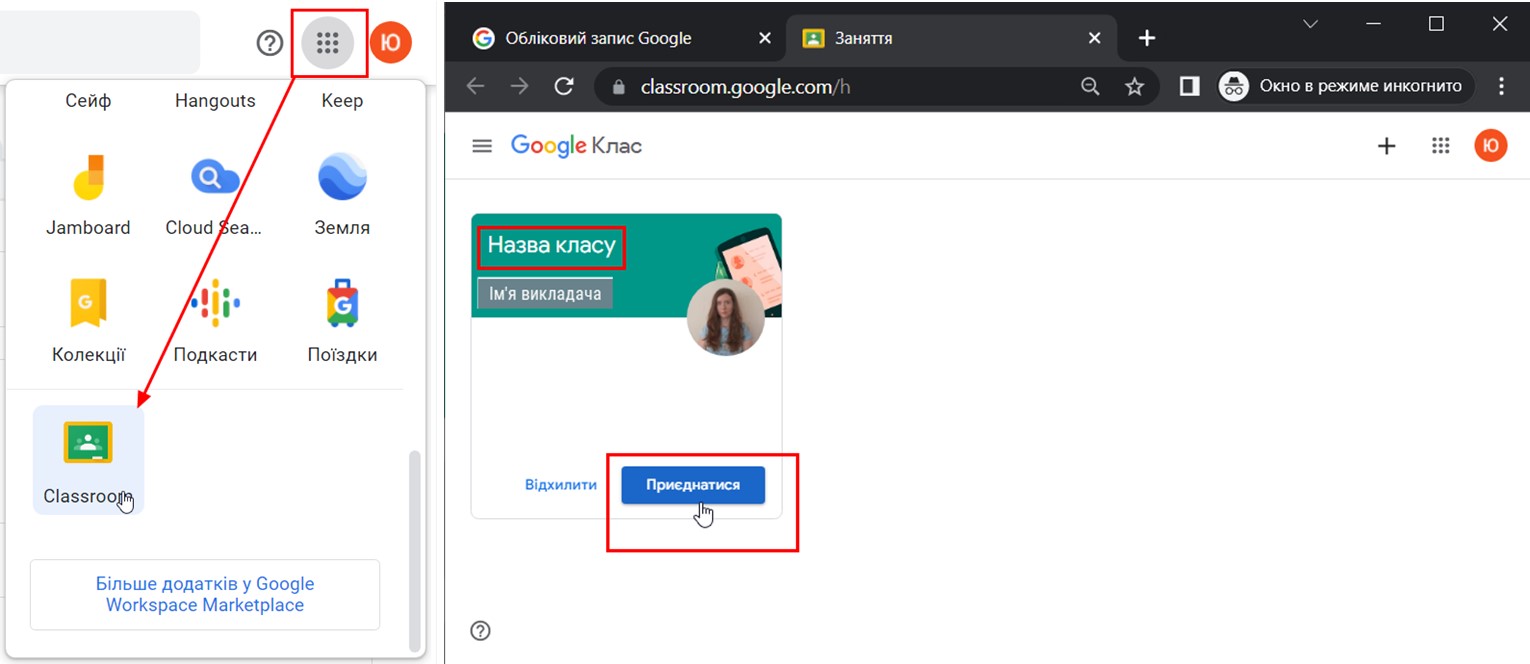
Open the Google apps in the upper right corner and find the Classroom app. The Google Classroom page will display all the classes to which you have been invited or in which you are already studying. To confirm your registration for a new course, you need to click the Join button.
-
After that you can work in all the classes you have joined.
ADDING A NEW PROFILE IN GOOGLE CHROME
It is advisable to create a new profile in Google Chrome on your home workstation (PC or laptop)
-
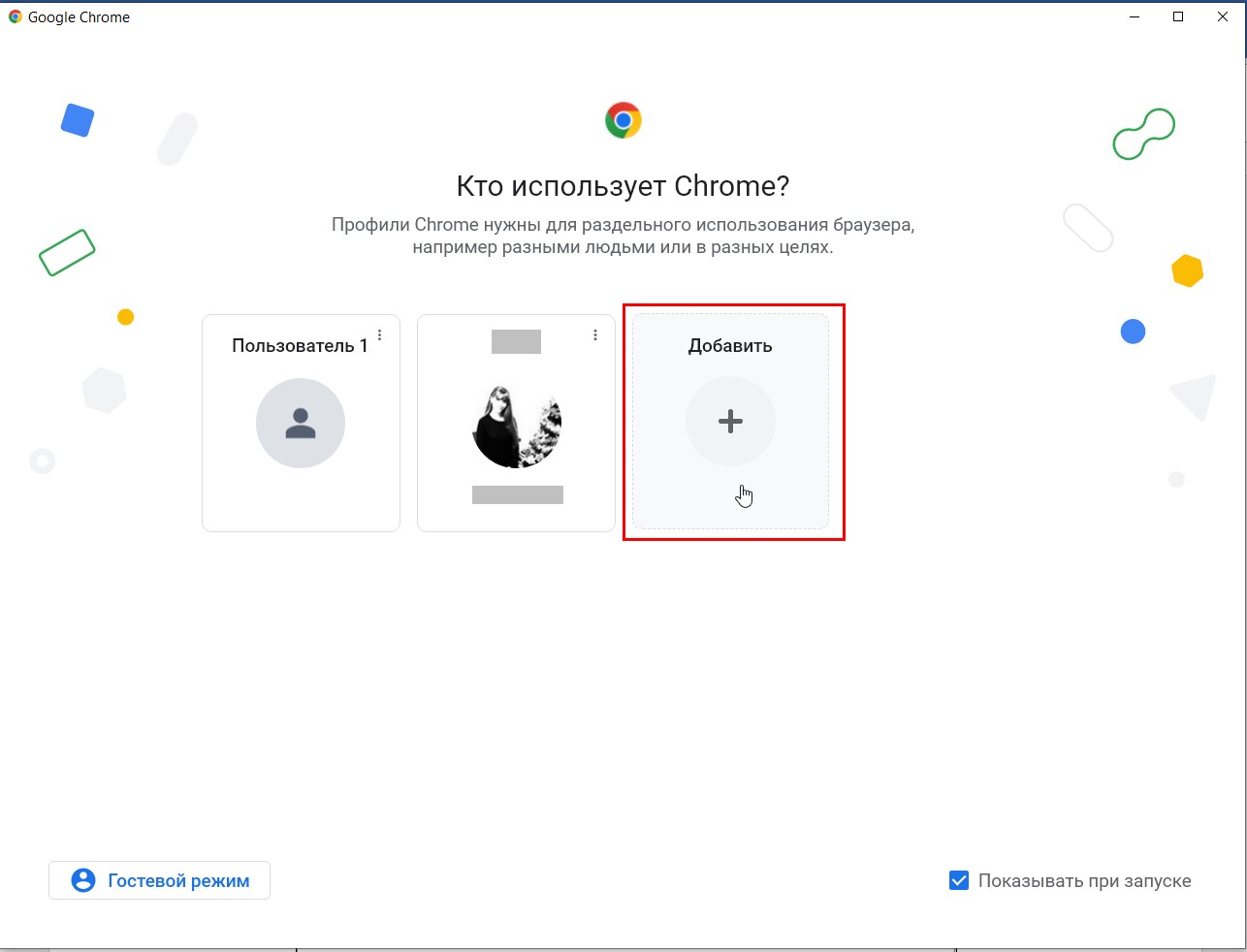
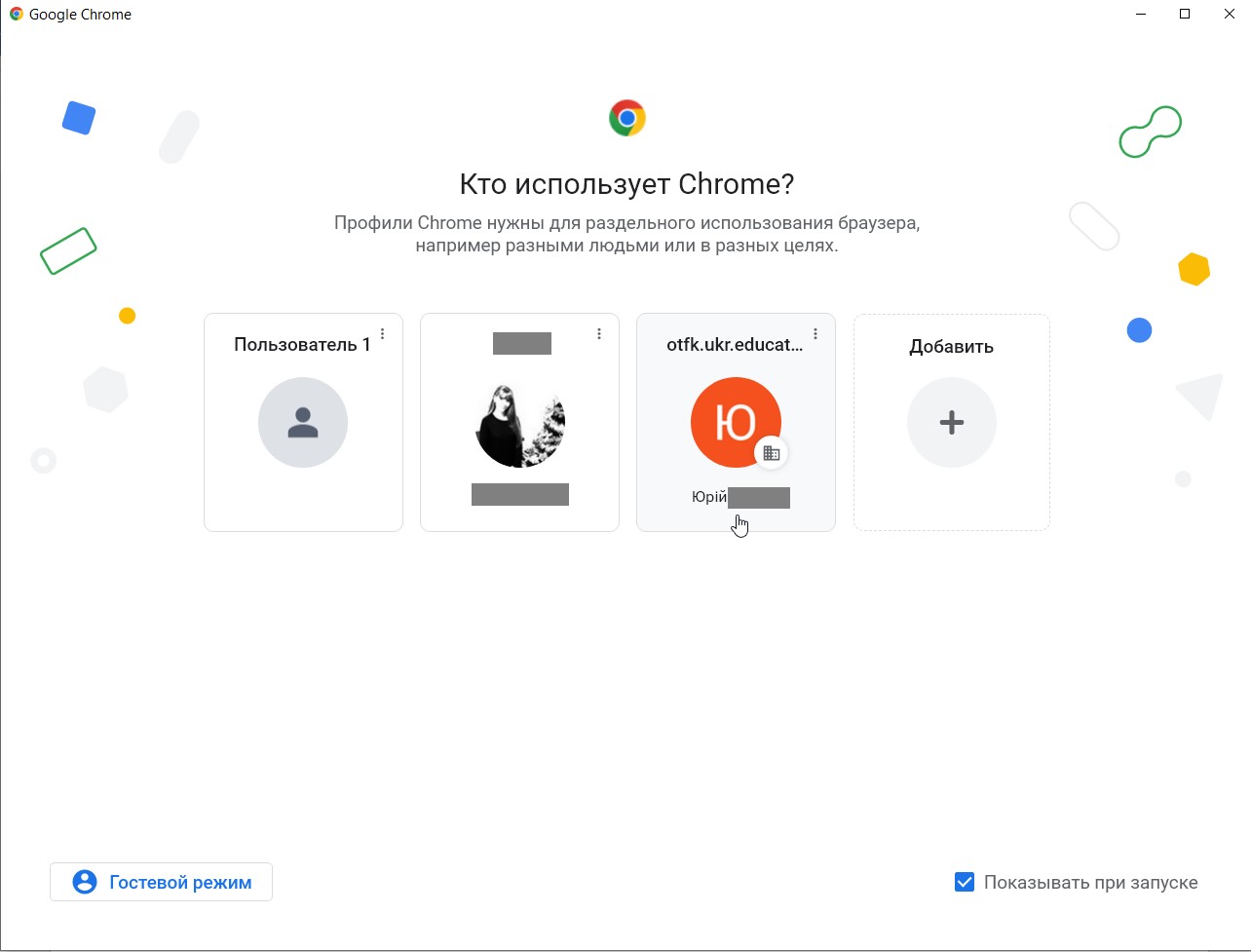
Open the Google Chrome browser and, in the start window, add a new user by clicking +.
-
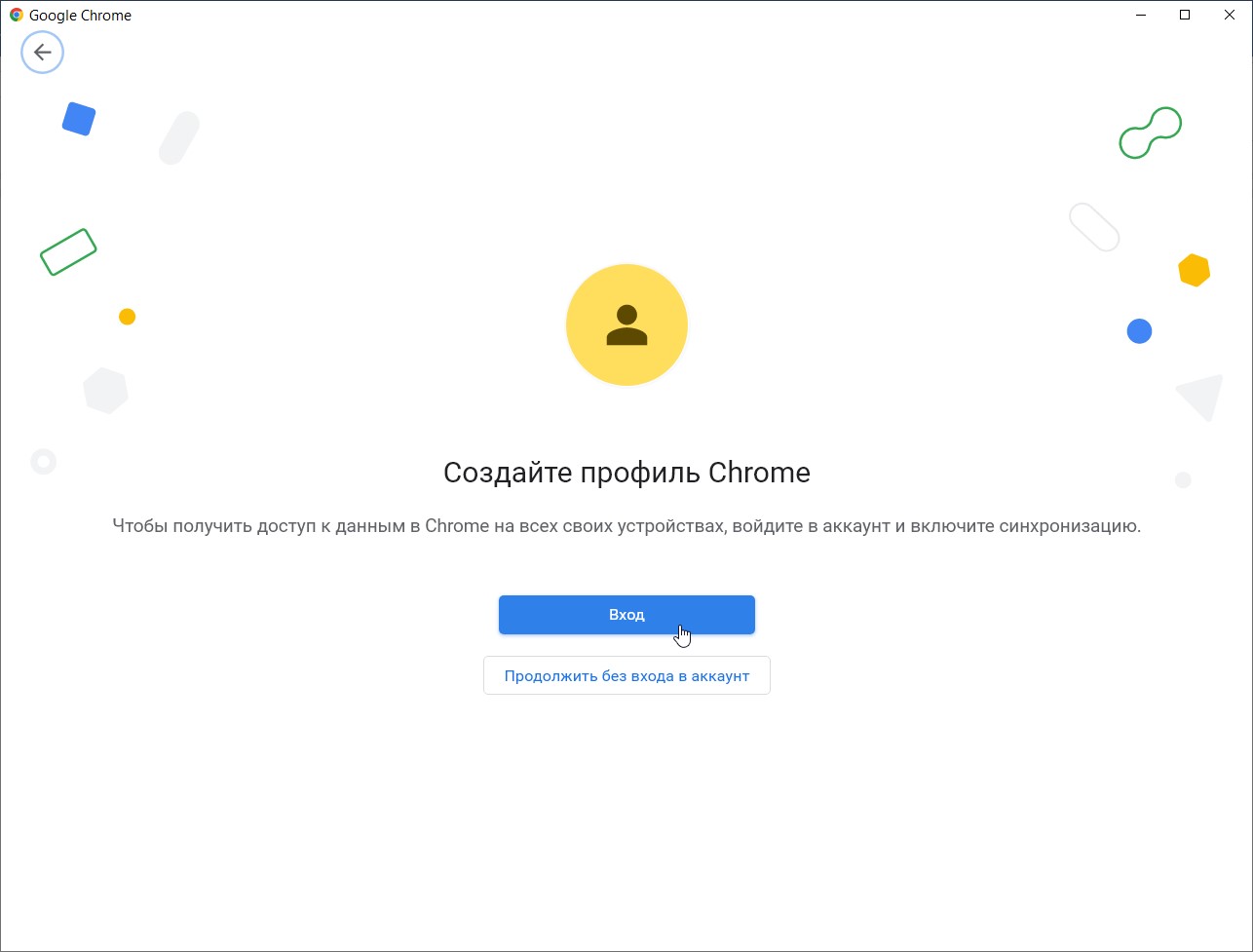
Click the Sign in button.
-
Go through the authorisation procedure (sign in to your corporate account).
-
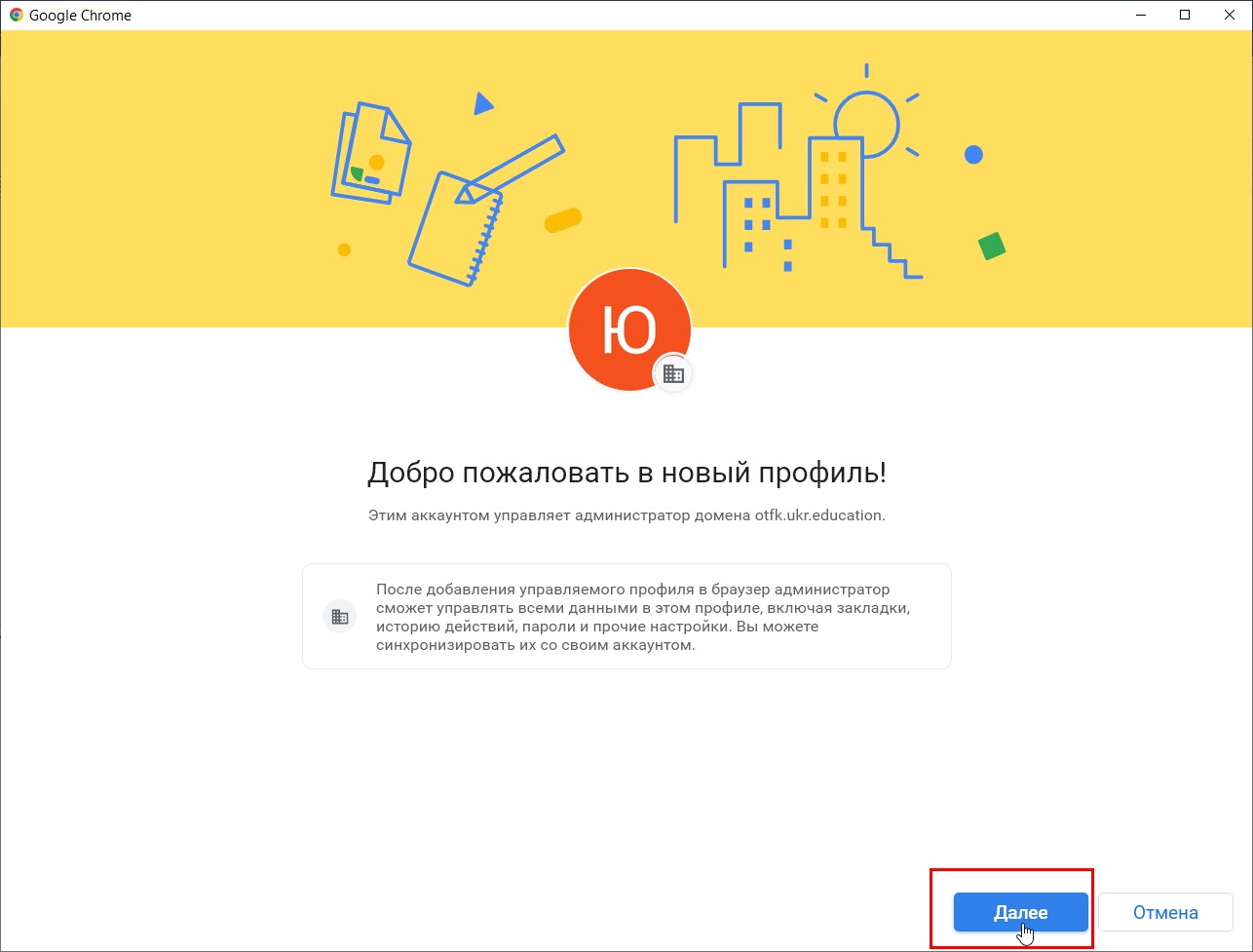
Read the information and click the Next button.
-
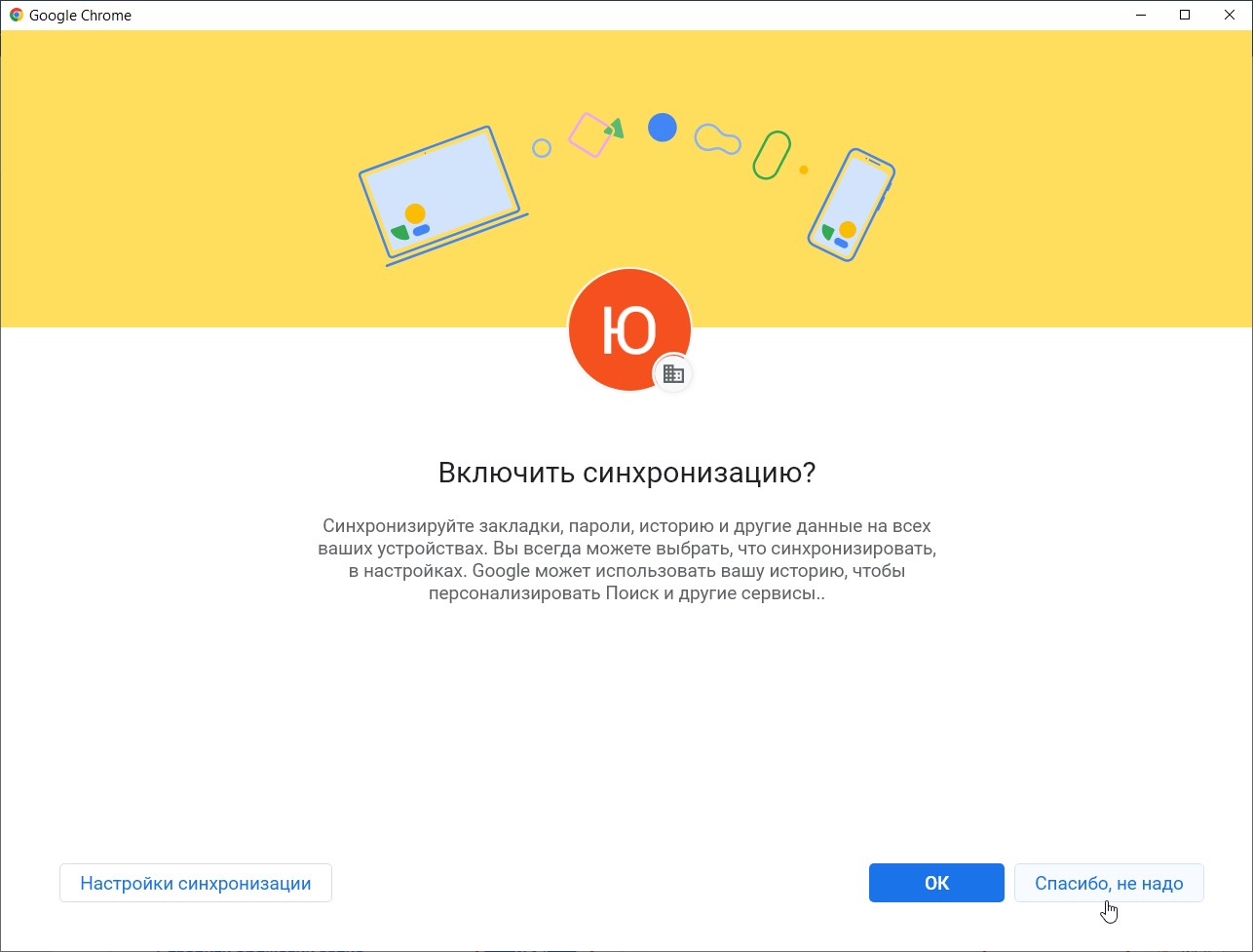
Read the information on data synchronisation between the corporate account and a regular Gmail account and click one of the buttons.
-
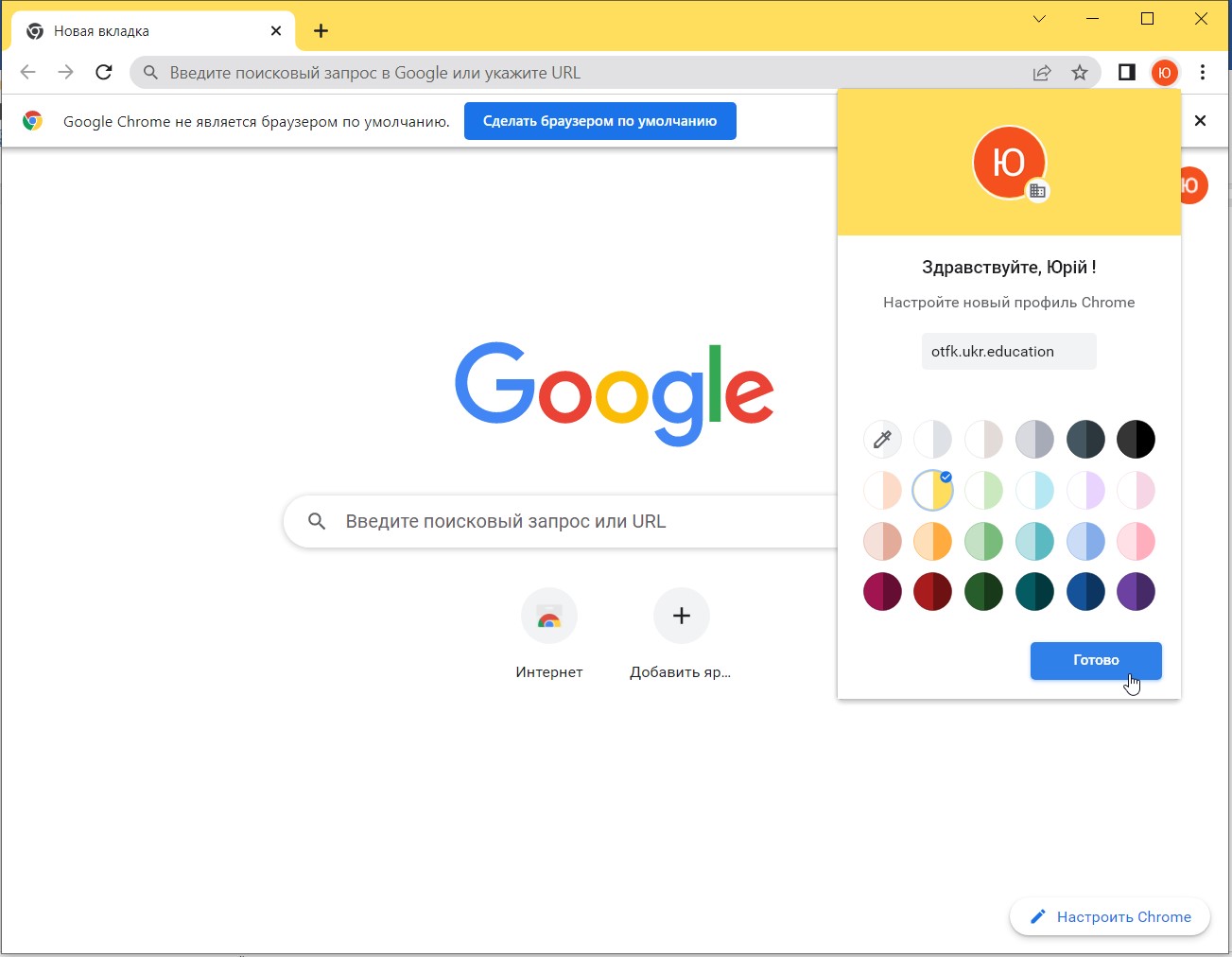
Set the colour scheme of the browser page and click the Done button.
-
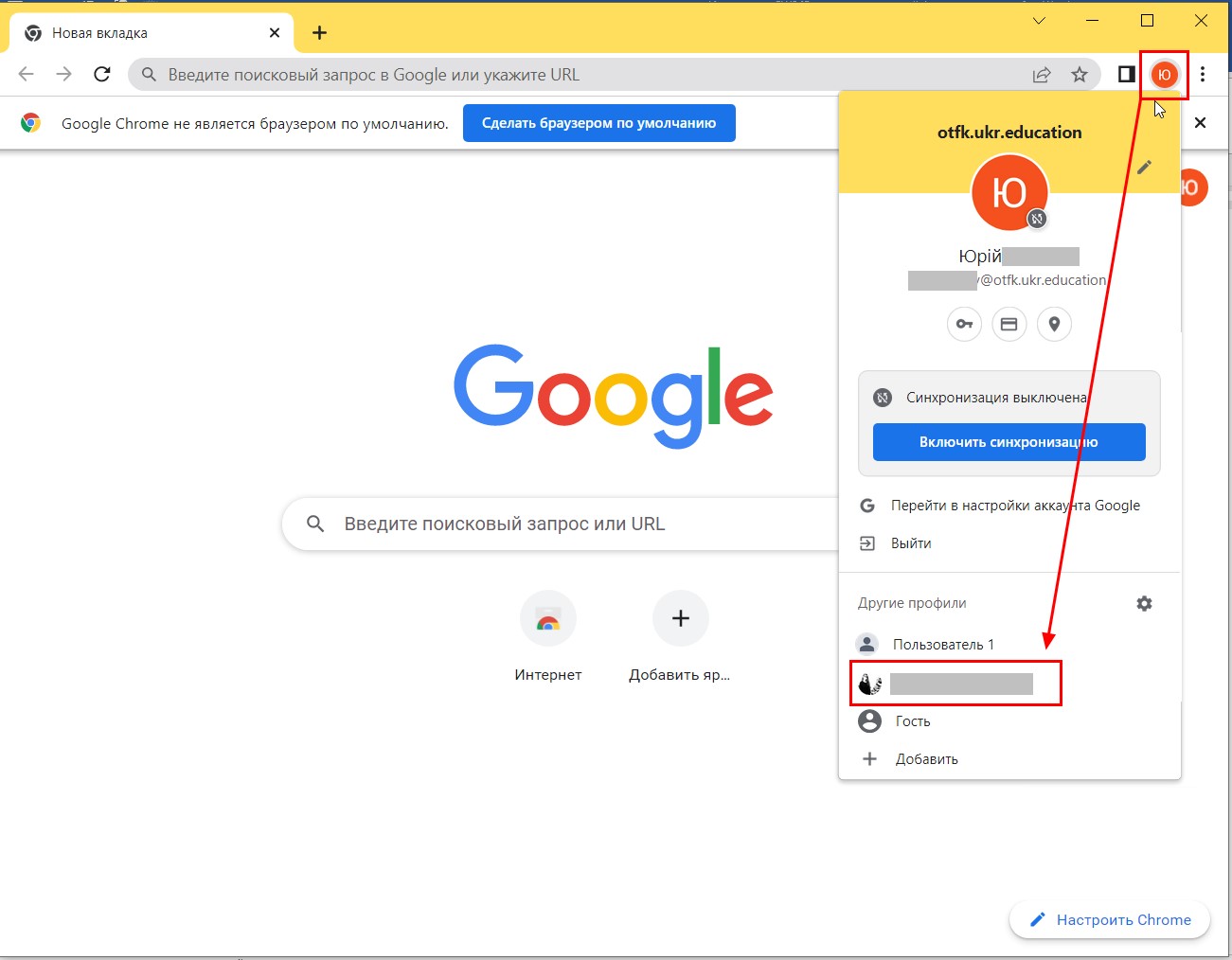
To switch quickly between the corporate account and a regular Gmail account, click the avatar icon in the upper right corner next to the search bar and select the profile you need from the list. The profile you have created will also be added to the Google Chrome start window.
-
Use the profiles registered on your home workstation (PC or laptop) for the tasks appropriate to each of them.
Cannot find the information you need?
The admissions office can answer questions about admissions, studying and documents.